jal
| ← What JAL is | Contents | Next: Your first half hour → |
2. Installing and starting JAL
JAL runs on Windows, macOS and Linux. It is a Python program, so Python has to be on your computer first — that is the only preparation.
Step 1 — Python
You need Python 3.9 or newer.
- Windows: download the installer from python.org and run it. On the first page of the installer tick “Add Python to PATH”, and leave the pip option switched on. Restart the computer afterwards so the change takes effect.
- macOS:
brew install python3, or the installer from python.org. - Linux: Python is almost certainly installed already. If not, install the
python3andpython3-pippackages of your distribution.
To check, open a terminal (Command Prompt or PowerShell on Windows) and type:
python --version
If it answers with a version of 3.9 or higher, you are ready. (On some systems the command is
python3 instead of python; use whichever answers.)
Step 2 — JAL
In the same terminal:
pip install jal
That downloads JAL and everything it needs. It takes a minute or two.
This is a terminal command, not something to type inside Python. If you see a prompt of three angle brackets
>>>, you are inside the Python shell — typeexit()first.
Step 3 — start it
jal
The main window opens. If your system cannot find the jal command, use the longer form, which
always works:
python -m jal.jal
You may want a desktop shortcut to that command — JAL does not create one for you.
Starting from the source code instead
If you would rather run the development version:
git clone https://github.com/titov-vv/jal.git
cd jal
pip install -r requirements.txt
python run.py
What happens the first time
JAL creates its database automatically and opens an empty window: no accounts, no operations, and a reporting currency of RUB, which is only a placeholder until you say where you live.
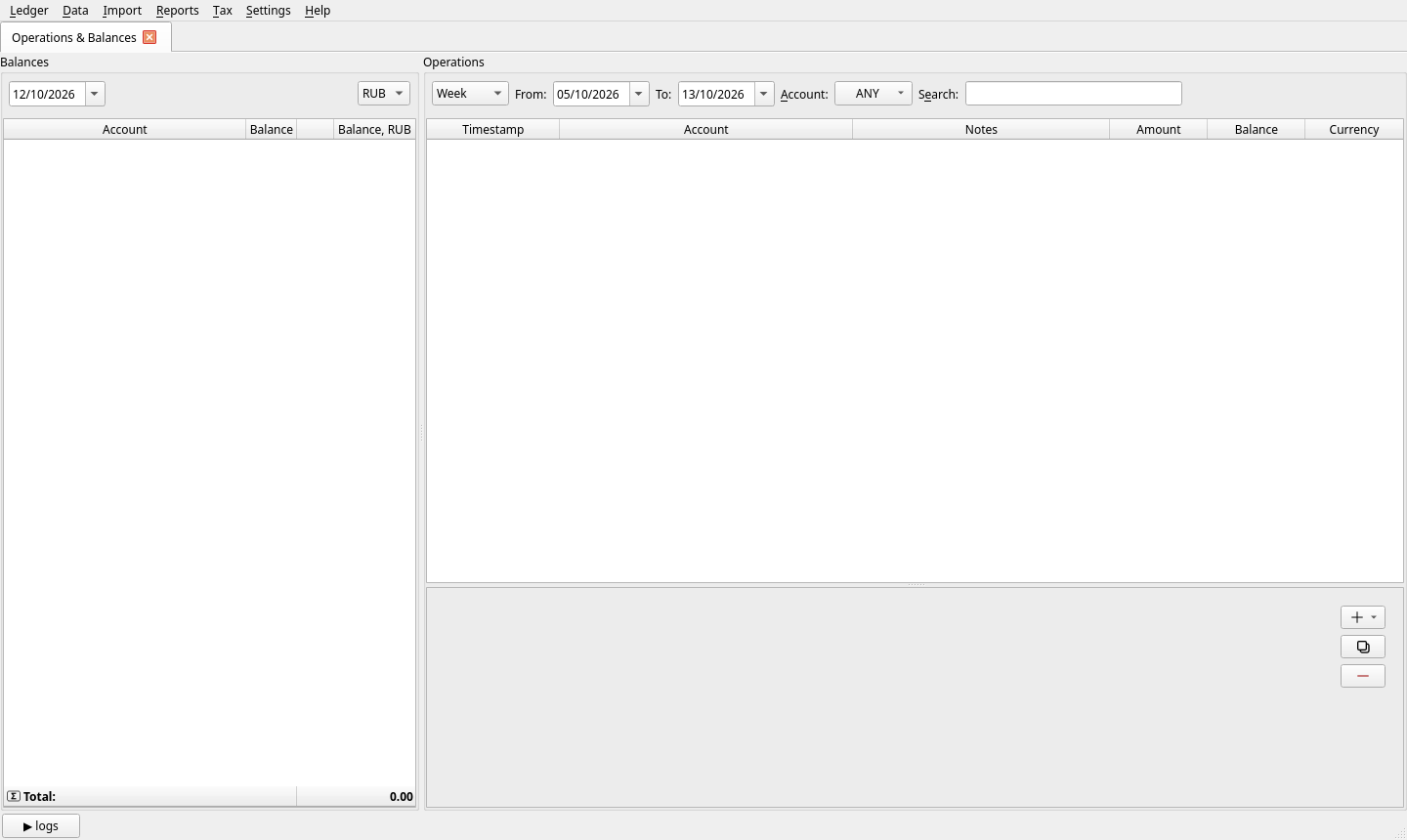
Do not worry about the emptiness — the next chapter fills it in.
Where your data is kept
Everything is in one file named jal.sqlite, which lives next to the program by default.
To see its exact location, open Help → About JAL:
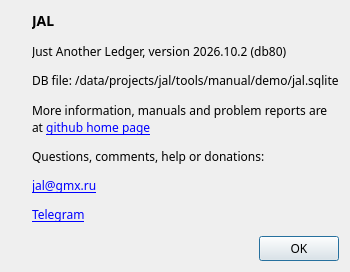
Write that path down. It is the file you back up, and the file you copy when you move to a new computer.
Putting the file somewhere else
Keeping the ledger in your own documents folder (or in a folder that a cloud service syncs) is often
more convenient. To do that, create a small text file called jal.ini in your operating system’s
configuration folder — %APPDATA% on Windows, ~/.config on most Linux systems, ~/Library/Preferences
on macOS — containing:
[main]
database_path=/home/anna/Documents/jal
Use the folder, not the file name: JAL will look for jal.sqlite inside it. Move your existing
jal.sqlite there before restarting, or JAL will create a new, empty one.
One writer at a time. Do not let two computers write to the same synced file at once, and let the sync finish before opening JAL on the other machine.
Upgrading
pip install jal -U
Your data file is not touched by an upgrade. If the new version needs a newer internal format, JAL converts your database when it next starts and tells you so. It may then offer to rebuild its ledger — say yes.
Back up before a big upgrade. Ledger → Backup… takes ten seconds; see chapter 12.
Removing JAL
pip uninstall jal
This removes the program. Your jal.sqlite may survive in the folder it lives in — delete it by hand
if you really want the data gone, and keep a backup if you might not.
| ← What JAL is | Contents | Next: Your first half hour → |