jal
| ← The main window | Contents | Next: Investments → |
5. Money in and money out
This chapter covers everything you do with ordinary money: recording what you spend and earn, moving money between your own accounts, labelling it all, and checking now and then that JAL agrees with your bank.
Income and spending
An Income / Spending operation records money crossing the boundary between you and the rest of the world: a shop, an employer, a landlord, a tax office.
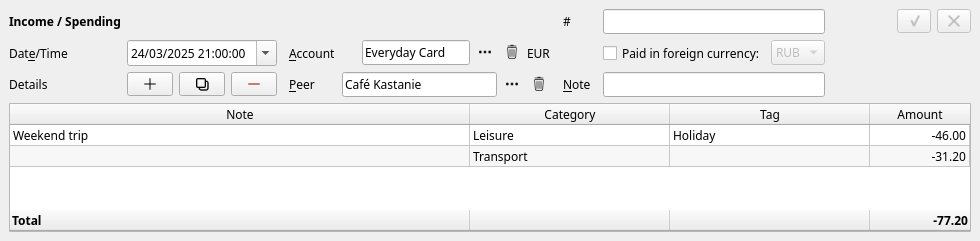
| Field | Meaning |
|---|---|
| Date/Time | When it happened. The time of day rarely matters, but the date does. |
| Account | Which of your accounts the money left or entered. |
| Peer | Who was on the other side. |
| Note (top) | A remark about the whole operation. |
| # | The fiscal number of an imported shop receipt, shown but not editable; empty for anything typed by hand. |
| The table | One line per thing being paid for. |
Each line of the table has:
- a Note — what the line was for, in your own words;
- a Category — the label the spending reports add up by;
- a Tag — optional, see below;
- an Amount — negative for money going out, positive for money coming in.
The +, copy and − buttons above the table add, duplicate and remove lines; Total at the bottom is what the operation does to the account.
Splitting one payment across categories
That is what the lines are for. One supermarket receipt can be Groceries −54.20 and Household −12.90; a weekend away can be Leisure and Transport, as in the picture above. The reports then count each part where it belongs, while the operation stays one payment of one total.
Paying in another currency
Tick Paid in foreign currency and choose a currency. Each line then gets a second amount, in that currency, next to the first. Use it when your account is charged in one currency but the bill was written in another — a euro card used abroad, for instance. The account is still moved by the amount in its currency; the second figure is kept as a record of what the bill actually said.
Transfers
A Transfer moves money between two accounts that are both yours. It is not spending, and it must never be recorded as two Income / Spending operations — the reports would then show money you never earned and never spent.
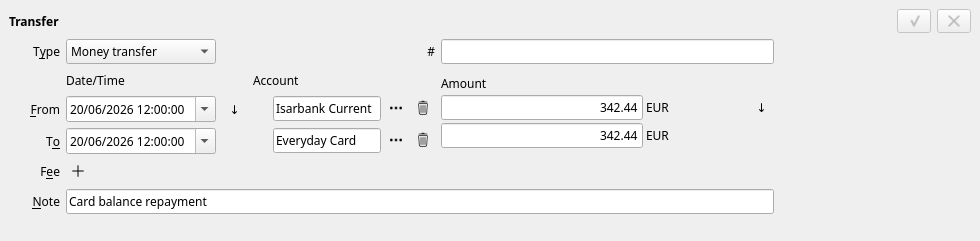
- Type — Money transfer for cash, Asset transfer when shares or coins move between your accounts (see chapter 6).
- From — date, account, amount leaving.
- To — date, account, amount arriving. The two dates can differ: a bank transfer that leaves on Friday and arrives on Monday is recorded exactly like that. The small ↓ buttons copy the date and the amount from the upper line to the lower one.
- Fee — press + to attach a fee and − to remove it. Choose Fee for a charge in money or Gas for a blockchain charge (then pick the coin it was paid in), the account it was taken from, and the amount. A fee lands in the built-in Fees category.
- # and Note — a reference number and a remark.
Changing currency
If the two accounts hold different currencies, simply put the amount that left in From and the amount that arrived in To:
5,000.00 EUR left the bank account, 5,219.21 USD arrived at the broker.
JAL needs no exchange rate for this — the transfer states it. This is how you record a currency exchange, a card payment abroad from a euro account, or funding a foreign brokerage account.
Transfers with one end missing
Sometimes only one side is known — money has left, and where it went will be recorded later (this happens most with crypto and with imported statements). JAL accepts such a half-transfer and shows its other end as (pending). The Unsettled transfers report lists them all, and the right-click menu on the operation offers to complete it.
Peers — who you dealt with
A peer is the other party: a shop, an employer, a bank, a friend. Manage the list in Data → Peers:
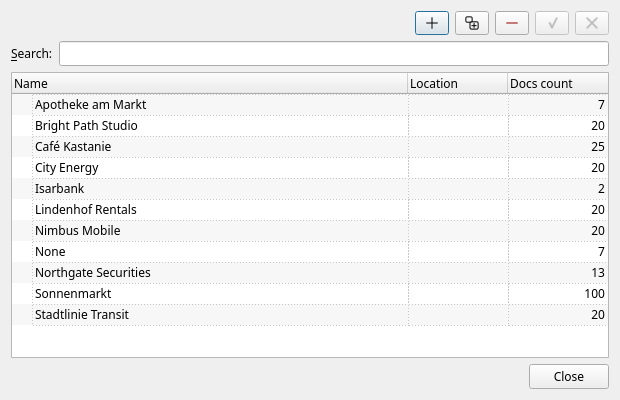
Peers can be nested — you might keep every supermarket under one parent — and the operations by peer report totals everything you have ever paid to one of them.
You do not have to fill the peer in. Leave it empty when it does not help you.
Tags
A tag is a free label that crosses categories. Holiday, Car, Renovation, Refundable.
Manage them in Data → Tags:
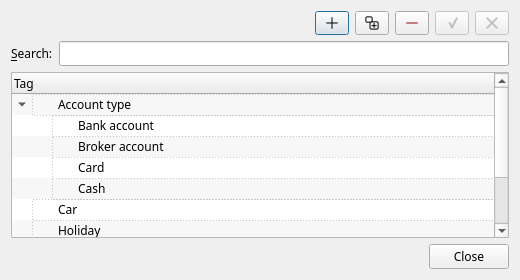
Tags are set per line of an operation — the Tag column in the editor’s table. To tag every line of an operation at once, right-click it in the list and choose Assign tag.
The operations by tag report then adds up everything carrying the tag, whatever category it was under. Tags can also be attached to assets, which lets the portfolio be grouped by them — see chapter 6.
A tag can be put on an account too — add a Tag detail to it in Data → Accounts. That is how you split a long list of accounts into groups of your own (by the property important for you). Give the tag a picture — right-click it in the list above and choose Icon — and every account carrying it is marked with that picture in the balances panel and in the portfolio report.
Repeating operations
Most household spending repeats. Select last month’s operation, press copy (or Ctrl+D), and a
new operation appears with everything already filled in — change the date and the amount and save.
Correcting and deleting
Select the operation, change what is wrong in the editor, press ✓. To remove it, select it and
press − (or Del) and confirm. There is no undo, so if the operation was hard to reconstruct,
make a backup first.
Balances and reports catch up immediately: JAL rebuilds the affected part of its ledger every time you save or delete.
Reconciling: checking JAL against reality
Reconciling means: “I have compared JAL with my bank statement up to this date, and they agree.”
To do it: find the last operation you have checked, right-click it, and choose Reconcile. The account is marked as confirmed up to that operation’s date, and the colour disappears from the balances panel until new operations pile up again.
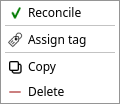
Nothing else is changed — reconciling is a note to yourself. Its value is that the colour tells you, at a glance, which accounts you have not checked recently, and the account editor shows the date of the last check.
When you import a broker statement, JAL compares the statement’s closing balance to its own figure, and reconciles the account automatically when the two agree. If they disagree, it says so in the log and leaves the account unreconciled. See chapter 9.
Accounts you no longer use
Do not delete a closed account — its history is part of your past. Open Data → Accounts:
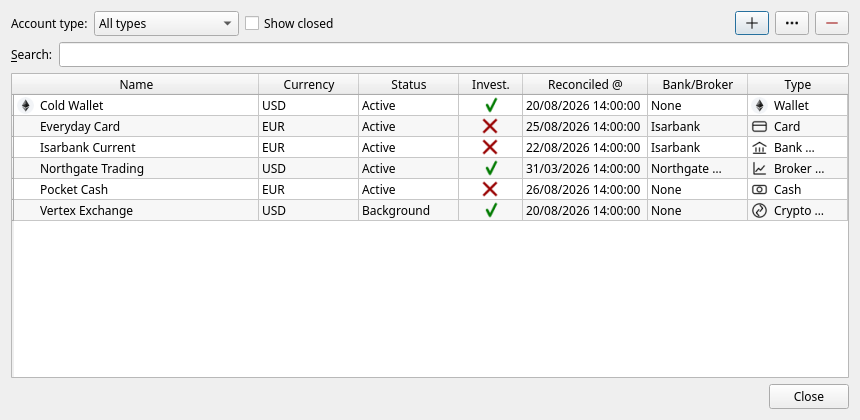
select the account, press … to open it, and set its Status to Closed. It disappears from the balances panel and from the pickers, while every operation it holds stays in the reports. Tick Show closed to see such accounts again here, and use Show accounts in the balances right-click menu to bring them back into the panel.
An account you still hold but no longer watch does not have to be closed: give it the status Background instead and it keeps counting in full, folded away into one group at the bottom of the panel.
| ← The main window | Contents | Next: Investments → |