jal
| ← Money in and money out | Contents | Next: Term deposits → |
6. Investments
If you own shares, funds, bonds or crypto, JAL can tell you what they are worth, what they cost you, what they have paid out and how much of the difference is profit. This chapter covers the ordinary investment life-cycle. Crypto has extras of its own, in chapter 8.
Setting up an investment account
Create the account as in chapter 3, with two particulars:
- Type = Broker account (or Crypto exchange for a crypto venue);
- Investing ticked — this is what allows the account to hold assets and not only money.
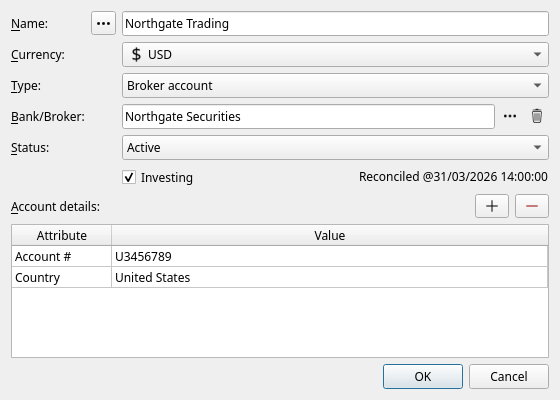
Under Account details it is worth adding:
- Account # — your account number at the broker. Statement imports match on it.
- Country — where the broker is. Tax reports use it.
- Precision — how many decimals the account counts money in (2 for a normal broker; more for crypto venues).
Then fund it. Money reaching a broker comes from another account of yours, so it is a Transfer — and if the currencies differ, the transfer itself states the exchange (see chapter 5).
Assets and their listings
An asset is the thing itself — Acme Industries Inc. A listing (JAL calls it a symbol) is one way that thing is traded: a ticker, in a currency, on an exchange. One asset can have several listings; the same share may trade in New York in dollars and in Frankfurt in euros.
Open Data → Assets to see everything JAL knows about:
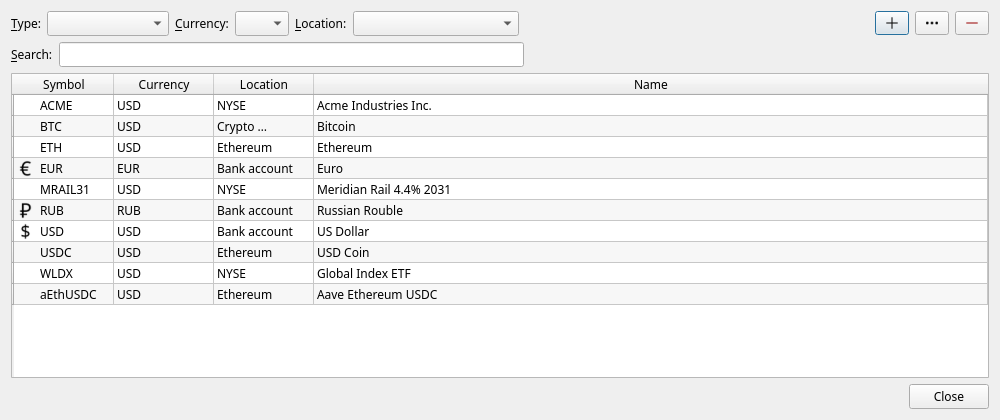
Note that currencies are assets too — that is how JAL can treat an exchange rate and a share price as the same kind of fact.
Select one and press the … button to open it:
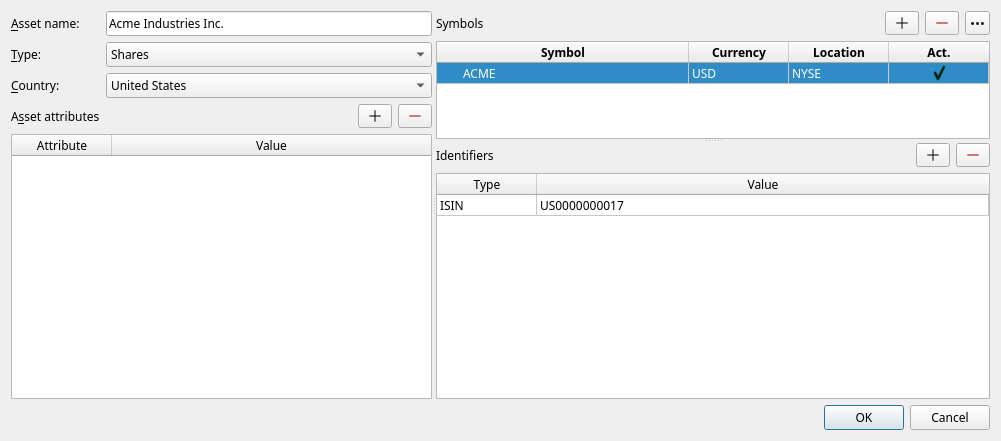
| Part | What it is for |
|---|---|
| Asset name | The full name of the company or fund. |
| Type | Shares, Bonds, ETFs, Funds, Commodities, Derivatives, Forex, Crypto-currency, Money. |
| Country | Where the issuer is registered. Tax reports care about this. |
| Asset attributes | Extra facts: a bond’s principal, an expiry date, a tag, a CoinGecko id for a coin, the protocol a receipt token belongs to (see chapter 8), and rebasing for a receipt token whose quantity grows on its own. An Aave v3 aToken gets both when it is first imported; set rebasing on another such token yourself, and saving the asset then offers to book apart the interest left inside its earlier wrappings. |
| Symbols | The listings: ticker, currency, exchange. The exchange decides where prices are downloaded from. |
| Identifiers | ISIN, CUSIP, FIGI, contract addresses — how the asset is named in statements and on chains. |
You rarely create assets by hand. Importing a broker statement creates every asset it mentions, with its identifiers filled in. Add one manually only when you enter trades by hand.
Adding a currency
A currency is an asset of type Money whose listing is on the Bank account location, with an
ISO4217 currency code identifier (826 for GBP, for instance). Add it in Data → Assets with
the + button, then it becomes available to accounts and to the currency boxes everywhere.
Buying and selling
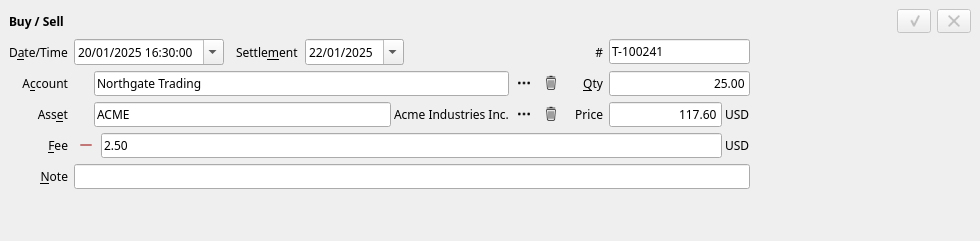
Press + → Buy / Sell:
| Field | Meaning |
|---|---|
| Date/Time | When the trade was executed. |
| Settlement | When it settles — usually a day or two later. Currency rates for tax purposes may be taken from this date. |
| # | The broker’s trade number. |
| Account | The investment account. |
| Asset | The listing being traded. Its full name is shown beside the box. |
| Qty | Positive to buy, negative to sell. |
| Price | Per unit, in the account’s currency. |
| Fee | Commission, in the account’s currency. Press + to attach one, − to remove it. |
JAL takes the money out of the account (or puts it in), moves the quantity, and remembers what each lot cost.
How profit is calculated
When you sell, JAL matches the sale against your earlier purchases oldest first (FIFO). The difference between what those lots cost and what you got for them — minus the fees on both sides — is the profit of a closed deal, and it appears in the Deals by account report. Positions you still hold are not counted as profit, however much they have risen; they show as unrealised value in the portfolio.
Dividends, coupons and other payments
An asset can pay you in two ways, and JAL keeps them apart: money paid on account of the asset (an Asset Payment), or the asset itself arriving (an Asset Income).
Asset Payment — money
Press + → Asset Payment:
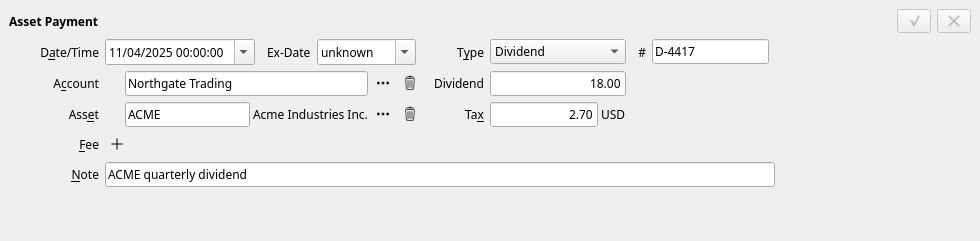
| Type | Use it for |
|---|---|
| Dividend | A cash dividend on shares. |
| Bond Interest | A coupon. |
| Asset fee/tax | A charge that belongs to an asset rather than to the account as a whole — an ADR fee, a transaction tax. |
Dividend is the gross amount and Tax is what the broker withheld; the account receives the difference. Ex-Date is optional and used by some tax reports. # is the broker’s reference. Fee attaches a charge the payment cost, the same way as for a transfer.
Asset Income — the asset itself
Press + → Asset Income:
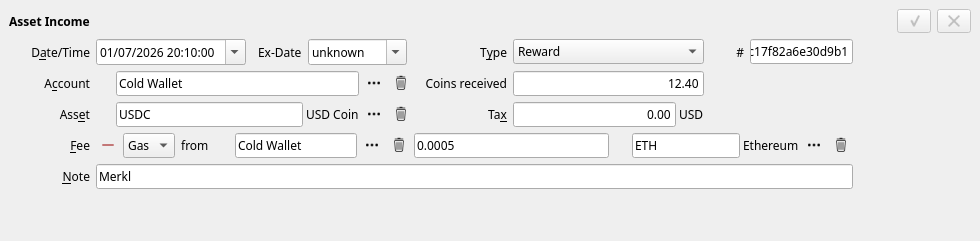
| Type | Use it for |
|---|---|
| Stock Dividend | Shares paid instead of cash. |
| Stock Vesting | Shares granted to you. |
| Staking reward, Reward, Dust attack, Rebase adjustment, Token account rent returned | Crypto; see chapter 8. |
The quantity that arrived is labelled after the type — Shares received, Coins received, Dust received. For a stock dividend or vesting you also state the Price it was valued at — that becomes its cost; the other types are valued from the downloaded prices (a rebase adjustment at zero, as it only restates what you already held).
Corporate actions
When a company splits its shares, changes its ticker, merges into another or spins one off, your holding changes without you trading. Record it with + → Corporate Action:
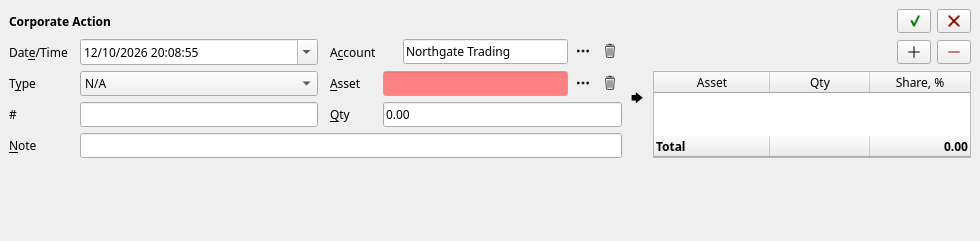
- Type — Split, Symbol change, Spin-off, Merger, Delisting.
- Asset and Qty — what went in.
- The table on the right — what came out: each resulting asset, its quantity, and its Share, % of the original cost.
The shares must add up to 100 %: the money you originally paid has to end up somewhere. For a split or a symbol change there is one result line with 100 %. For a spin-off, the company publishes the split of cost basis (in the United States, on Form 8937) — use its figures. If the shares do not add up, JAL refuses to build the ledger past that point and says so in the log.
Corporate actions usually arrive with a broker statement import, already filled in — but the percentages are yours to check.
Moving assets between your accounts
Use a Transfer with Type = Asset transfer: shares leave one account and arrive at another, carrying their original cost with them. Nothing is bought and nothing is sold, so no profit arises — which is exactly right when you move a holding between brokers.
Prices
JAL cannot value anything it has no price for. Prices come from Import → Download quotes…:
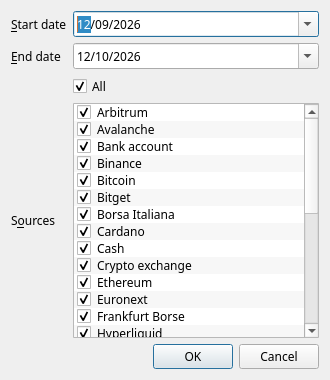
Pick a date range, tick the sources you want, press OK. JAL then fetches:
- exchange rates for your currencies — from the European Central Bank and, for roubles, the Central Bank of Russia;
- prices of every asset you held during the period, each from the source that matches its listing’s exchange: Moscow Exchange for MOEX, Yahoo Finance for New York, London, Frankfurt, Helsinki, Warsaw, Euronext Milan for Milan, TMX for Toronto, DeFiLlama for crypto;
- logos for the assets, where they are available — purely cosmetic.
Nothing about you is sent: JAL asks public services for public prices.
A monthly download of the whole month is plenty for most people. Prices are stored, so old ones are never fetched twice.
Looking at prices
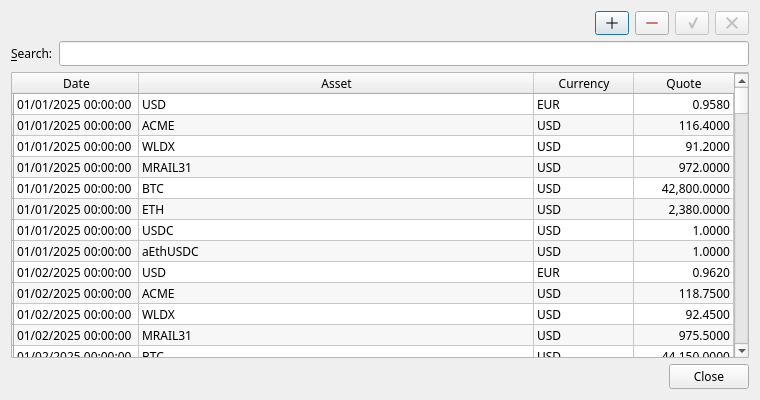
Data → Quote history lists every price JAL holds, and lets you correct one by hand or add a missing one:
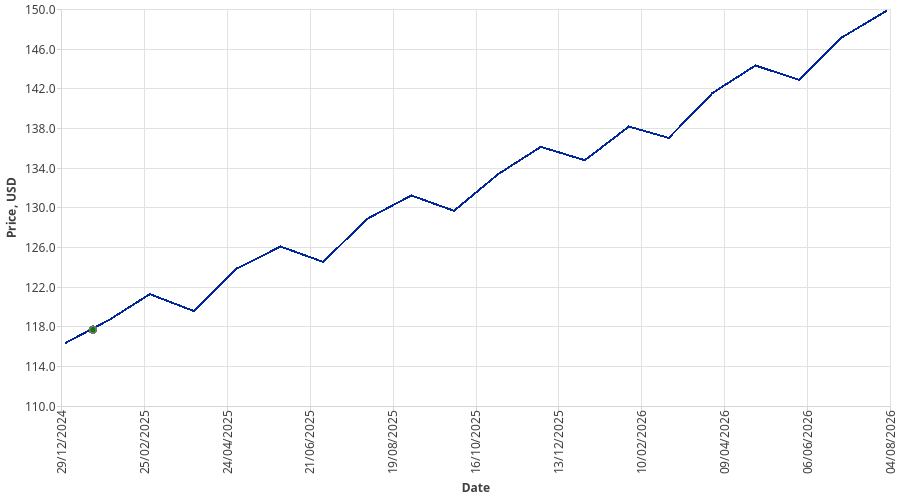
In the portfolio report, right-click a position and choose Show Price Chart to see its history with your own trades marked on it:
What your investments are worth
Reports → Asset portfolio is the answer to “what do I own?”:
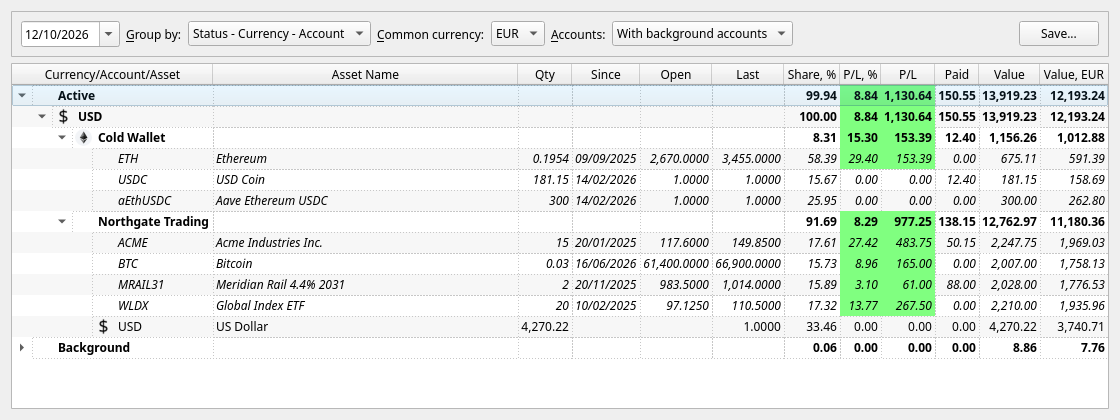
For every position: quantity, when it was opened, the price you paid, the last known price, the share of the portfolio, profit in money and in per cent, what it has paid out, and its value in both its own and your reporting currency. The Group by box regroups it all by currency, account, asset, country or tag.
Chapter 10 describes this and the other investment reports — Deals, P&L, Assets’ payments — in detail.
What a sale would cost in tax
Right-click a position in the portfolio and choose Estimate tax, then a country — Portugal or Russia, the two whose rules JAL knows:
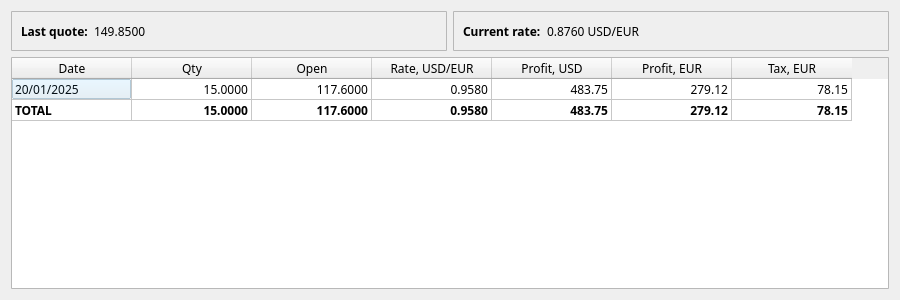
JAL takes the lots you hold, the last known price and the current exchange rate, and shows what profit — and what tax at that country’s rate — selling everything today would produce. It is a rough guide for deciding whether to sell, not a tax return; the real thing is in chapter 11.
| ← Money in and money out | Contents | Next: Term deposits → |