jal
| ← Your first half hour | Contents | Next: Money in and money out → |
4. The main window
Almost everything you do in JAL happens in one window. This chapter names every part of it.
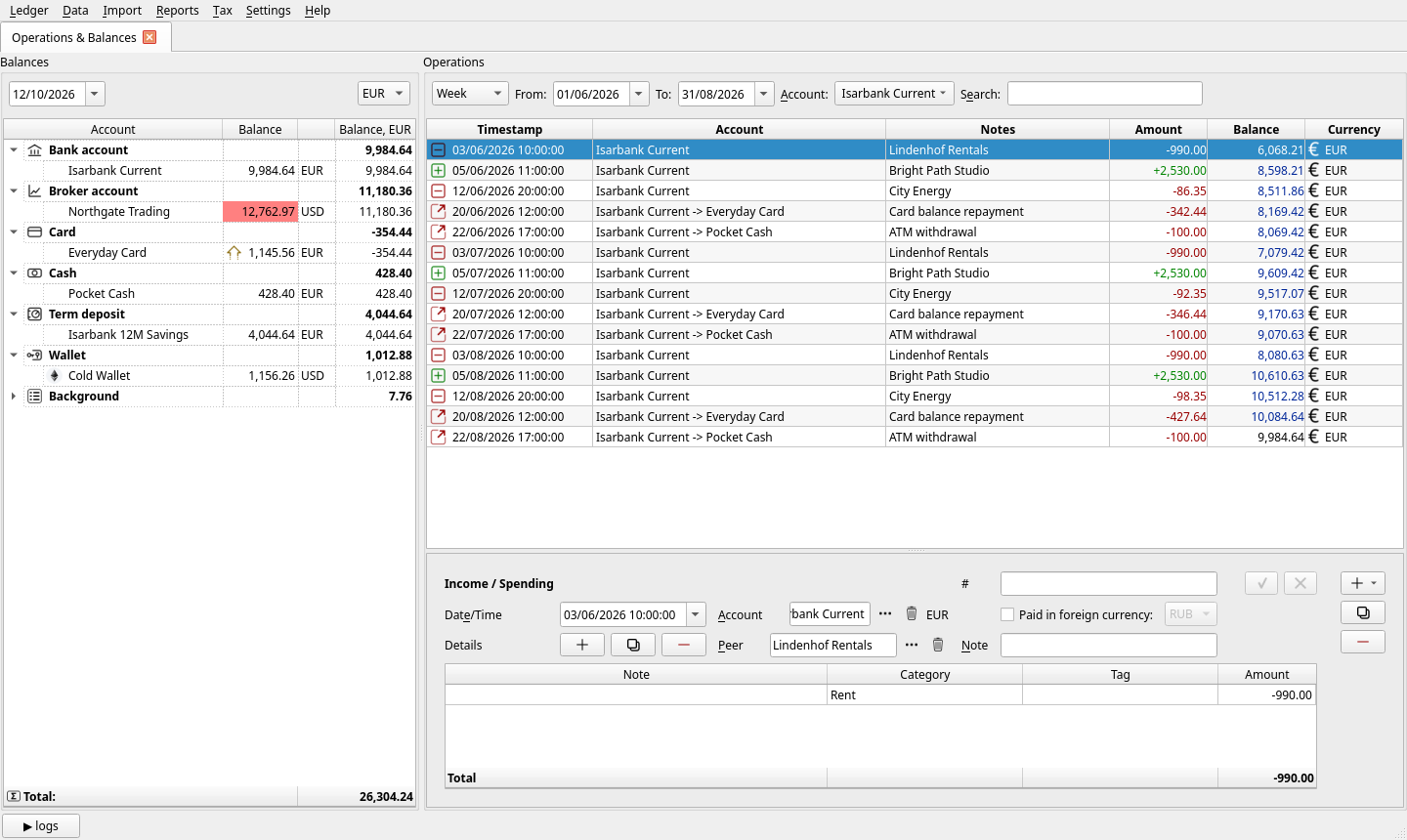
The window has four areas:
- the menu bar along the top;
- Balances on the left — what you have;
- Operations on the right — what happened;
- the editor underneath the operations — the details of whatever is selected.
At the very bottom is a logs button that opens JAL’s message panel.
Tabs
JAL opens its windows as tabs across the top. Operations & Balances is the one you start in; every report you open adds another. Close a tab with the ✗ on it — closing the operations tab is harmless, Ledger → Operations brings it back. Some small windows (charts, tax forms) open as windows of their own instead of as tabs.
The Balances panel
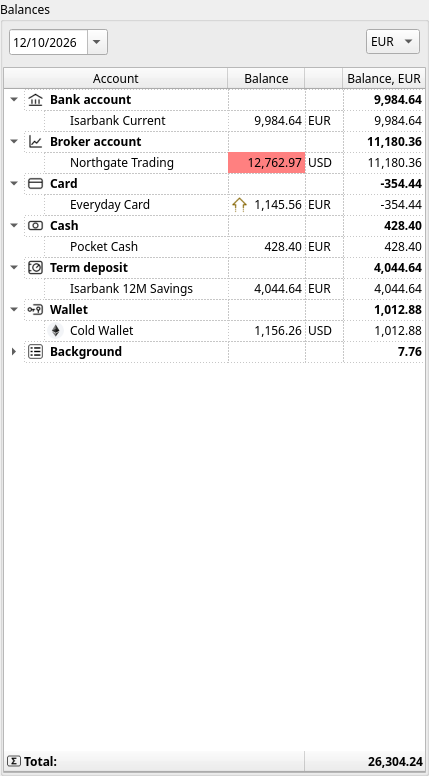
A list of your accounts, grouped by type, showing what each one holds.
- The date box at the top left is the day the balances are shown as of. Set it to any past date to see what you had then.
- The currency box at the top right chooses the currency the last column (Balance, …) is converted into. It starts at your reporting currency.
- Balance is the amount in the account’s own currency; the last column is that amount converted. The Total at the bottom adds up the converted column.
Double-click an account and the operations list to the right jumps to it.
The colours
The Balance cell is coloured when the account has not been checked against reality for a while:
| Colour | Meaning |
|---|---|
| no colour | reconciled recently — JAL’s figure was confirmed against a statement |
| yellow | more than a week of operations since the last check |
| red | more than a fortnight |
This is a reminder, not an error: it says “nobody has confirmed these numbers lately”. See Reconciling in the next chapter. In the picture above, the trading account is red because it was last checked in March.
A small upward arrow beside a balance means the figure includes a credit limit — the card above holds −354.44 of its own but has 1,500 of credit, so 1,145.56 is what could still be spent.
Background accounts
An account whose status is Background keeps every figure it has, but it is not given a row of its own among the account types. All of them gather under one Background group at the bottom of the panel, which opens folded: what you see is a single total. Open it and the account types are inside, exactly as above. A group you open by hand stays open while JAL runs.
Use it for what holds real money but needs no daily attention — an old savings account, a wallet you top up once a year — so the accounts you actually work with are the ones you see. In the picture above that is the exchange account, emptied into the wallet long ago and holding the change: it still counts in the Total, it just no longer takes a line.
The pictures beside the names
An account row wears the picture of the account itself; a crypto wallet that has none wears the logo of its blockchain instead, so you can tell an Ethereum wallet from a Solana one at a glance.
An account you have given a tag wears the tag’s picture in front of that, as a mark of the group it belongs to. Rows without a tag show nothing there and keep the space for their names. Give the tag a picture in Data → Tags (right-click it and choose Icon) — a tag with no picture marks nothing.
Right-click on the panel
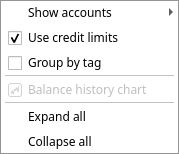
- Show accounts — how deep the panel reaches: Active accounts only, With background accounts or With closed accounts. Each choice includes the ones above it.
- Use credit limits — whether card limits are added to balances, as described above.
- Group by tag — put the accounts that share a tag next to each other inside their type group, so their marks run down the column together. Untagged accounts gather at the top.
- Balance history chart — opens the account balance history report for the account under the cursor.
- Expand all / Collapse all — the account-type groups.
The Operations list
Every operation, oldest first — with a running Balance column so you can follow the account from line to line. The icon at the left says what kind of operation it is.
Most operations take one line, but not all of them. An operation that moves two different assets at once — a swap, a bridge, a wrapping — writes both of them into the same row, one above the other; and a fee, in money or in gas, is a row of its own underneath the operation that paid it. Selecting any of those rows opens the same operation in the editor below.
Rows that belong to one transaction — the same number or transaction hash, at the same second — are drawn as a group. Only the first row shows the time and the number; the rows under it are tied to it by a line, show their own icon a little to the right, leave out the account where it merely repeats the row above, and write their notes in a lighter colour. A swap and its gas, a transfer’s two ends and its fee, a reward claim that paid out several coins — each reads as one bracket. Grouping changes only how the rows look: every row is still there, in the same order, and still opens its own operation. Rows hidden by the search box break the group, so a line never points at something you cannot see.
Three controls above the list decide what is shown:
- Period — a preset (Week, Month, Quarter, Year, All dates) plus a From and To date you can set by hand. The presets count backwards from today; the dates are yours to override.
- Account — one account, or ANY for all of them at once.
- Search — free text; only the operations whose text matches stay on screen.
How the amounts are shown
Amount and Balance are written with two decimals, which is what money needs and what a coin rarely fits. A figure that has more decimals than it shows is underlined: it is rounded, and hovering over it shows the exact number with the asset it is in.
An amount too small to be seen at two decimals is not shown as 0.00 but compactly, the way crypto
wallets write it: 0.0₂21 is 0.0021, 0.0₃80 is 0.0008 — the small figure counts the zeros that
follow the decimal point, and two significant digits follow them.
The buttons on the right
| Button | Does | Shortcut |
|---|---|---|
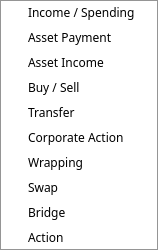
| + | New operation. The small arrow opens the list of kinds. | Ctrl+N |
| copy | A new operation pre-filled from the selected one — the fastest way to record a repeating payment. | Ctrl+D |
| − | Delete the selected operation, after a confirmation. | Del |
Right-click on an operation
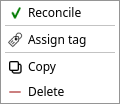
- Reconcile — mark the account as checked up to this operation (see next chapter).
- Assign tag — put a tag on every line of the operation at once.
- Copy, Delete — the same as the buttons.
Two more entries appear only where they mean something: Match cross-chain legs… for a crypto transfer whose other half is missing, and the settlement actions for a transfer that knows only one of its two ends. Both are explained in chapter 8.
The editor
Select an operation and its details appear below the list. Each kind of operation has its own editor; they all work the same way:
- Change whatever you like — the ✓ and ✗ buttons at the top right wake up as soon as something is different.
- ✓ (
Ctrl+S) saves. ✗ (Esc) puts everything back as it was. - A field JAL cannot do without is painted red until you fill it in.
- If you move to another operation with unsaved changes, JAL asks whether to save, discard or stay.
Every editor is described in chapter 5 and chapter 6.
The menu bar
| Menu | What is in it |
|---|---|
| Ledger | Backup, restore, re-build the ledger, delete everything, exit (chapter 12) |
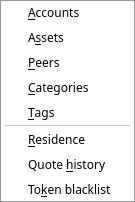
| Data | The lists JAL keeps: accounts, assets, peers, categories, tags, residence, quote history, token blacklist (chapter 5, chapter 6) |
| Import | Broker statements, blockchain wallets, shop receipts, prices (chapter 9) |
| Reports | Everything JAL can show you (chapter 10) |
| Tax | Tax reports for Portugal and Russia (chapter 11) |
| Settings | Preferences and the interface language (chapter 12) |
| Help | This documentation, the FAQ, the list of messages, bug reports, and the About window with your database path |
The log panel
The logs button in the bottom left corner opens a panel where JAL writes what it is doing: prices downloaded, statements imported, and any complaint it has. When something has not worked as you expected, that panel is the first place to look — chapter 13 explains what the messages mean.
The latest message is also shown on the status bar beside the logs button, coloured by how serious it is — grey for ordinary progress, orange for a warning, red for an error. It stays there until you open the panel, so the panel itself can stay closed most of the time.
| ← Your first half hour | Contents | Next: Money in and money out → |