jal
| ← Crypto-currency | Contents | Next: Reports → |
9. Importing
Typing every trade by hand is tedious and error-prone. Where your broker, your bank or a public blockchain can hand you the data, JAL will read it.
Broker statements
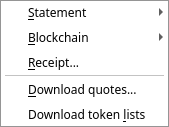
Import → Statement → … and choose your broker:
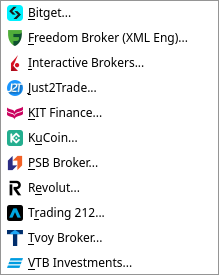
| Broker | File to ask them for |
|---|---|
| Interactive Brokers | a Flex Query result, .xml |
| Freedom Broker | statement in XML (English), .xml |
| Just2Trade | .xlsx |
| KIT Finance | .xlsx |
| PSB Broker | .xlsx or .xls |
| Revolut (bank) | account statement, .csv |
| Trading 212 | History export, .csv |
| Tvoy Broker | .zip |
| VTB Investments | .xlsx |
| KuCoin (crypto exchange) | export archive, .zip |
| Bitget (crypto exchange) | export archive, .zip |
KIT Finance, PSB Broker and VTB Investments are stale. These three importers were written for older statement layouts and are no longer kept up with the brokers’ changes. If one of them fails on your statement, open a request for improvement in the issue tracker — an example statement, with your personal data cleaned out of it, will be required.
Pick one or more files and JAL does the rest. For Interactive Brokers, set the Flex Query up once at the broker’s site to include trades, cash transactions, corporate actions and open positions; after that, exporting is a click.
Keep every field of sections switched on (Select All). Action ID is the one JAL cannot do without: it is how JAL mergers lines for the same event, and a statement that has no Action ID can be refused with a message saying so. FIGI is the other one - it allows JAL to identify assets correctly (especially if you trade options: it is how JAL recognizes an option that got another symbol when its underlying asset was split).
Trading 212
Two things about this broker are unlike the rest.
The file names no account. A Trading 212 export has no account number anywhere — not in the data, not in the file name — so JAL cannot work out which of your accounts it belongs to. Say it once in Settings → Preferences → Import, in Trading 212 account; the import refuses to run until you do, and stops if the account you named is in another currency than the statement.
Card purchases are reviewed before they are imported. The account has a card on it, and a purchase you typed in yourself is already in JAL by the time the monthly export exists. Nothing identifies a purchase on both sides — the operation has no reference number, and the two clocks rarely agree to the minute — so JAL pairs them by the amount, ranks the candidates by how close in time they are, and shows you the result: one row per card purchase the statement holds. The ones JAL found in the database are unticked and say which operation they matched; the ones it did not are ticked and wait for you to give them a peer and a category. Untick a row to leave it out, tick one to bring it in. Trades, dividends, interest and cashback do not go through this step; they are imported straight away.
One consequence to keep in mind: interest and cashback are recorded one operation per statement row, and JAL cannot recognise them on a second import. Import each period once.
Revolut
A bank rather than a broker, and its export is the whole history of the account: card purchases, ATM withdrawals, fees, refunds, cashback, the interest of the savings pocket and the money you moved between the two. Ask the Revolut app for a statement in CSV — one file covers every pocket, and both ends of a move between them are in it.
The file names no account either, so — as for Trading 212 — you say once which of your accounts it is about, in Settings → Preferences → Import: Revolut current account and Revolut savings account. Only the ones the file actually holds are demanded, so an export with no savings rows needs no savings account. The import stops if a named account is missing or is in another currency than the statement, and a file must be in exactly one currency.
Purchases go through the same review step as Trading 212’s: one row per purchase, refund, ATM withdrawal, fee and cashback, already-matched ones unticked, the rest waiting for a peer and a category.
What is imported without asking: money moved between the current account and the savings pocket (as one transfer, both of its ends being in the file) and the interest of the pocket — the gross Revolut credited, with the tax it withheld beside it as a line of its own.
A movement the file doesn’t place — a top-up, a payment to a person, a transfer to a pocket other than the savings account you named — is imported as a transfer with one end missing. The file states the amount and nothing about where the money came from or went, and JAL will not invent the other end: the row waits in Reports → Unsettled transfers, where you name the account, or record it as a spending or an income when the other end was a person (see chapter 10).
Such a movement is not stored a second time when it is in JAL already. A transfer you typed in yourself — the same amount, in the same direction, on the same day — is taken for it without asking. One that resembles a spending or an income you typed in is shown in the review step with the purchases, marked Transfer and unticked: leave it so if it is that operation, tick it to store it as an unsettled transfer beside it.
Importing an overlapping period is safer here than with Trading 212: purchases are matched against what is already stored, and an interest payment is recognised by its day, so it is not booked twice. If the interest stored for a day differs from what the statement says, the import stops and names the day.
Revolut writes the export in the language its app is set to. English and Portuguese are recognised; a file in another language stops the import, naming the word it did not know.
What an import actually does
- Reads the file and checks it is what it claims to be.
- Matches everything it mentions against what you already have — currencies, then assets (by ISIN, registration number or CUSIP first, by ticker only as a last resort), then accounts (by number and currency). Whatever is missing is created.
- Writes the operations, inside one database transaction: either the whole statement lands, or nothing does.
- Rebuilds the ledger and compares the statement’s closing balance with its own figure.
That last step is worth understanding. If the two agree, JAL reconciles the account automatically up to the statement’s end date — the balance stops being coloured in the balances panel, and you know your records match the broker’s to the cent. If they disagree, the log says so:
Statement ending balance doesn't match: Northgate Trading / USD / 1901.30 (act) <> 1903.75 (exp)
and the account stays unreconciled. Something is missing or duplicated — the log above the message usually says what.
Importing the same statement twice
It is safe. Every operation carries the fields that identify it, and one that is already in the database is skipped with a note in the log. Overlapping statements — say monthly ones that each include the last day of the month before — will not double anything.
The log ends with a line that counts both, per kind of operation:
Operations imported (new / already present): transfers 3 / 12; trades 40 / 0
That is also why you should not “fix” an imported operation by re-importing after editing it by hand: change it and JAL may no longer recognise it as the same operation.
When an import fails
The log names the reason, and JAL leaves the database untouched. The usual causes are a file from a different broker, a statement in a format the broker has changed since, or an incomplete export. If the format has changed, please report it — see chapter 13.
Blockchain wallets
Import → Blockchain → … reads a wallet directly from the chain. It needs an account of type Wallet with its address, and for most chains a free API key. All of it is in chapter 8.
Shop receipts (experimental)
Import → Receipt… turns a shopping receipt into an Income / Spending operation with one line per item bought:
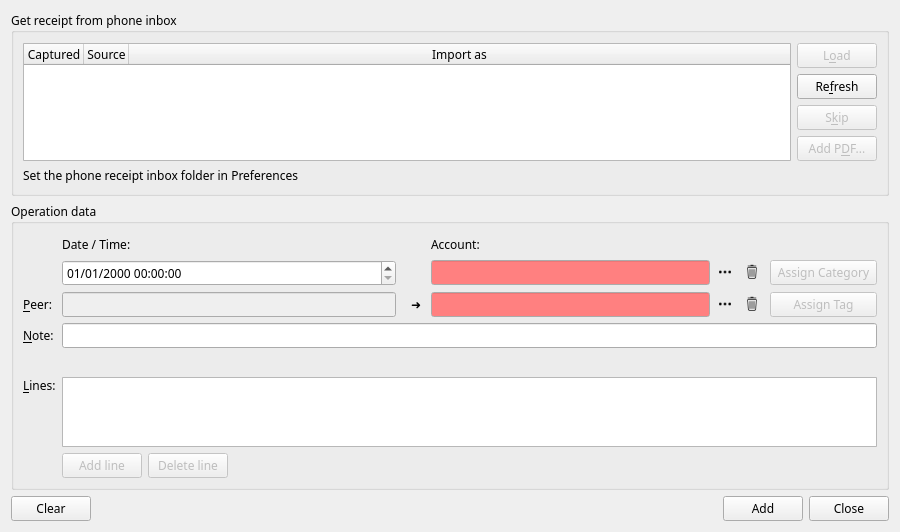
The phone app is not publicly available yet. Paper receipts and images reach JAL only as files written by its companion Android app, ReceiptScan. Until that app is published, the PDF receipts a shop sends are what this dialog can import — see Add PDF… below. Typing a receipt’s codes in by hand, scanning a QR code with the computer’s camera and the Lidl Plus and Pingo Doce logins of earlier versions are gone.
Receipts arrive from the phone app into the inbox folder set in
Preferences. A PDF receipt that is on the computer
already needs no phone: Add PDF… takes the files you choose and puts them into the same inbox
folder, which therefore has to be set. Your own files stay where they are. Reading PDF receipts
needs the pypdf package, and reading the QR code of one — which a Russian receipt cannot be
imported without — needs pyzbar; neither is installed with JAL.
The list shows each file with the time it was captured, what it is (Paper scan, Image or PDF) and how it will be imported; a file that cannot be imported says why. Select one and press Load:
- a Portuguese receipt is checked against its fiscal QR code, and its lines come from the scan or from the shop’s PDF;
- a Russian receipt is fetched from the tax service (FNS) by its QR code.
A banner above the lines tells how far they can be trusted — Reconciled automatically, Not reconciled, check the lines or No usable fiscal code, rescan recommended — each line carries a mark of its own, and the footer compares the sum of the lines with the receipt’s total. Lines can be edited, added and deleted; Assign Category and Assign Tag fill the lines that have none yet. A discount off the whole receipt becomes a line of its own in the Discounts category.
Choose the account and the peer and press Add. The account is chosen for you when the receipt
names a card whose last four digits are recorded in an account’s details (Card (last 4 digits)).
The imported file moves into the inbox’s done subfolder, as does one you dismiss with Skip.
The operation keeps the receipt’s fiscal number in its # field, and a receipt whose number is
in the ledger already is refused, so nothing is imported twice.
This feature is not needed for anything else in JAL.
Prices and exchange rates
Import → Download quotes… — described in chapter 6.
Token lists
Import → Download token lists refreshes the public lists of known-genuine blockchain tokens, so that fetched wallets can tell a real token from an impostor. See chapter 8.
Getting data out
JAL has no single “export everything” command, but:
- every report has a Save… button that writes it to an Excel
.xlsxfile (chapter 10); - tax reports produce Excel files and, where supported, the tax authority’s own format (chapter 11);
- the whole database is one file you can copy — chapter 12.
| ← Crypto-currency | Contents | Next: Reports → |